
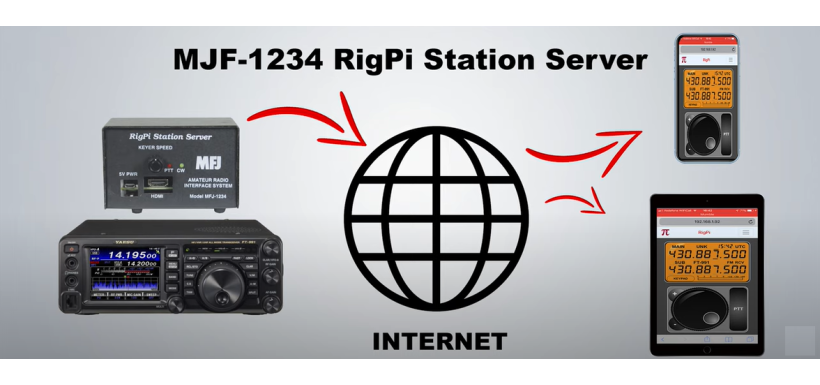
With a million ways to communicate in today's digital world, the ham radio community remains as committed as ever to the craft. Just because radio technology predates smartphones and wearable tech doesn't mean amateur radio hasn't kept up with the times. The MFJ-1234 RigPi Station Server is the perfect example.
The RigPi Station Server (RSS) offers a radically new approach to station control. It consolidates numerous functions into one advanced piece of kit that allows the user to operate their rig remotely from anywhere in the world! Whether in the next room or another country, you can connect using a web browser, smartphone, laptop, or tablet.
Here, we'll walk you through the basic steps of getting your MFJ-1234 RigPi Station Server set up and ready for remote control use.
1. Connect RSS Using Ethernet
The population of amateur radio users grew in recent years in places like the United States, meaning there are now more users that you can communicate with globally. But before you can start controlling your ham radio from anywhere in the world, you need to set it up.
Commonly, your RSS will connect to your router using an ethernet cable. Once connected, plug in the RSS 5-volt battery supply. Green lights will blink as RigPi boots up.
Open a web browser on a different device connected to the same network and navigate to rigpi3.local.
As soon as your RigPi Station Server has completed its startup process and is ready to go, you'll see the RSS login screen.
2. Connect RSS Using Wi-Fi
With 63% of the world's population actively connected to the internet in 2021, Wi-Fi connectivity is more relevant now than ever — and the RigPi doesn’t disappoint.
You can connect to your RigPi Station Server over Wi-Fi. With Wi-Fi, you'll complete similar steps as you would with an ethernet connection, with a few key exceptions.
If using Wi-Fi, you'll need to connect a monitor, keyboard, and mouse to the RSS to complete the setup process. You could use a TV or computer screen with USB or HDMI inputs.
When powered up, the Raspbian PIXEL Desktop will appear. Click the Network icon and turn on Wi-Fi. Choose the network you want to join. Enter necessary details, like location, timezone, and country, and click the RSS icon. The login screen will appear.
3. Launch RigPi Program
When you receive your RSS, the username will default to ‘admin’, and there will be no password. Once you launch the RigPi program, you can add your call sign and set a unique passcode.
Type ‘admin’ into the username box and hit Enter. The first time you launch this program, the Express Setup window will pop up. Input your call sign, update the password, and fill out other necessary details. When you're through, proceed to Express Radio Settings by hitting ‘next’.
Now, you can elect to continue using the preinstalled Hamlib radio Dummy or set up your radio. Once this step is complete, you'll be directed back to the main page. Let the CAT control fun begin.
4. Set Up Remote Connections
Finally, it's time to set up remote connections for your MFJ-1234 RigPi Station Server. Remote access must be made available through RSS settings. Three ports―one for a browser, one for VoIP, and one for VNC viewer―must be open. Make sure that no firewall or router is blocking the ports.
Now, you can set up your RSS to either translate or forward an incoming port to a different port.
Mumble is the open-source VoIP system that comes preinstalled on your RigPi Station Server. The RSS audio board already offers an input and output path for audio, but you can connect to other USB audio sound devices if you choose.
Mumble clients can connect to the server to send and receive audio for remote radio access. Because Mumble clients are readily available for all major operating systems, you shouldn't have any issues connecting on any of your devices.
5. Explore Other Features
Your RigPi Station Server does a lot more than just letting you connect remotely. You can search through the included FCC database for call signs, keep an eye on DX hotspots, and send CW from various devices.
With the ability to design and maintain multiple logs and access email, spreadsheet, and word processing programs, the RSS offers many features in one bundle.
To top it all off, you can control multiple radios in different browsers at once, even from the same device.
Conclusion
For radio technology to remain relevant, continued innovations in radio are essential, and the MFJ-1234 RigPi station meets this need. Being able to participate in the radio community by remotely connecting to your MFJ-1234 RigPi Station Server from anywhere in the world is a massive leap forward.
Pick up your MFJ-1234 RigPi Station Server today from Moonraker and experience global remote control like never before.