
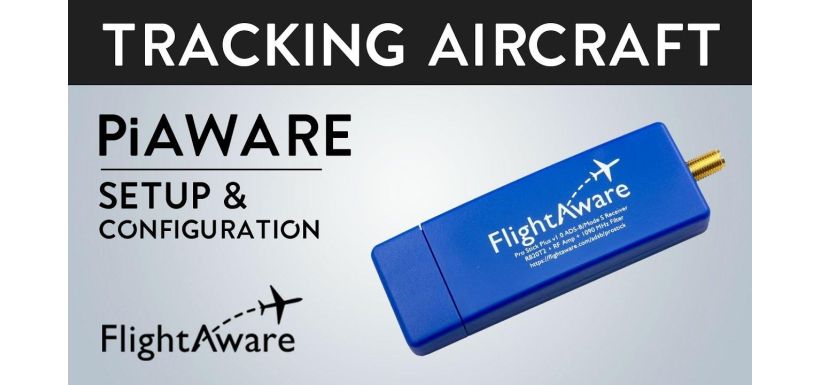
If you've ever heard an aeroplane flying high above you and wished you could figure out what type of aircraft it was, now you can. With FlightAware PiAware, you can track flights from anywhere in the world.
FlightAware is an American digital aviation company that provides the world's most extensive flight tracking and data platform. It provides aviation data to airports, airlines, and software developers. It also offers passengers global flight tracking solutions, analytics, and predictive technology.
FlightAware's PiAware is an open-source software solution that makes aircraft data accessible to anyone. This how-to guide will walk you through setting up your FlightAware PiAware system so that you can track aircraft with it.
What To Buy Before Setting Up PiAware
PiAware works by gathering information from the ADS-B and displaying it on a map. The software gathers real-time positions multiple times per minute, giving users an easy, enjoyable, and accurate way to track planes right on their computer.
All that's needed are a few supplies and access to the FlightAware PiAware system. With this software, absolutely anyone can be part of the world's fastest (and largest) growing ADS-B (Automatic Dependent Surveillance-Broadcast) network.
Before you can build and run your ADS-B ground station, you need to gather a few items. For the best pricing possible, shop around for bundle deals, as these will give you the most value for your money.
-
Raspberry Pi
-
Micro SD card
Following contains detailed information of the items:
Raspberry Pi
To get started, you'll need a computer running 24/7, preferably a Raspberry Pi (hence the ‘Pi’ part of the name PiAware).
This low-cost computer plugs into a computer monitor or TV. It's helpful in learning how to program in languages like Python and Scratch. It's the size of a credit card and uses a standard mouse and keyboard.
There are several models, but the only ones worth considering for this project include:
-
Raspberry Pi 3
-
Raspberry Pi 4
-
Raspberry Pi Zero W
Power Supply for the Raspberry Pi
The recommended power supply is 5.1 Volts 2.5 Amps. You may be able to purchase this in a bundle deal with the Raspberry Pi itself and a protective case (more on the case later).
Micro SD Card & Reader
We advise an 8 GB or larger SD card for storage capacity. You'll also need a micro SD card reader only if your computer has a built-in SD card reader. You'll need a USB SD card reader if your computer does not have a built-in SD card reader.
USB SDR ADS-B Receiver
The USB SDR ADS-B receiver will translate the 1090 MHz radio signal into something the computer can understand. We recommend the FlightAware Pro Stick or Pro Stick Plus. The Plus has an onboard filter that works in locations with a lot of radio noise, like urban environments.
1090 MHz Antenna
You'll need an Antenna to receive signals from the aircraft. You can use either an indoor or outdoor antenna. If you choose to use the USB adapter (Pro Stick or Pro Stick Plus) from FlightAware, ensure there is an SMA connector on the antenna.
Also, keep in mind that the larger the antenna, the broader the view of the sky you'll get. We suggest you invest in the largest antenna you can afford and mount it outside if possible.
If you prefer to mount it inside, place it on a window that offers a clear view of the sky. If you have a two-story home, an upstairs window will be best.
Optional Items
The following items are not required; however, they come in handy.
-
Micro SD Card Preloaded with PiAware. The first step in setting up your PiAware is loading the SD card with PiAware. This process is straightforward, but you can save time by purchasing a Micro SD card preloaded with PiAware and skipping the programming step.
-
Raspberry Pi Case. Not only will the case make the Raspberry Pi look nicer, but it's great for protecting it from shorts. Bundles give you the most value for money, so shop for a Raspberry Pi bundle that includes the case and preferably the power supply along with it.
-
Ethernet Cable. Only necessary if you're not using WiFi.
-
1090 MHz Signal Filter. This filter removes the excess noise that comes with living in an urban environment or a location with a lot of radio interference. If you're in a rural setting, skip this item. Also, note that the Pro Stick Plus has an onboard filter. Therefore, go with the Plus if you live in an urban environment.
-
200 Joules Surge Protector. You'll need a way to prevent voltage spikes in your Raspberry Pi. An easy and inexpensive way to do so is by using a surge protector. If you live in an area known for high voltage spikes, you'll want to go with an 800 joules surge protector.
How much will all of the supplies cost? Plan to spend around 80 pounds on all the necessary supplies. Remember to be on the lookout for bundle deals to get the most value for your money.
Now that you have all the necessary tools, it's time to build your PiAware device.
How to Set up FlightAware PiAware
Now that your shopping list is complete, here is a step-by-step guide on setting up your own FlightAware PiAware station.
Note that you can set up your FlightAware station anywhere, but you need to set aside about two hours. To avoid any complications, follow instructions carefully and have all materials at hand before you begin.
Step 1: Install PiAware on Your SD Card
The steps to installing PiAware on your SD card will look a little different depending on the software operating system (Windows vs Mac OS). Here are the general steps you'll need to follow.
-
Begin by downloading the PiAware SD card image on Rasbian.
-
Open https://etcher.io/ in a new tab and follow the directions on installing the program.
-
Open Etcher and run.
-
Click on ‘Select Image' and double click on the PiAware image zip file.
-
This next step is very important. Be sure you select the correct Micro SD card. This process will overwrite all data on the drive. People have accidentally lost a year's worth of pictures this way.
-
Once you're sure that you have selected the correct drive, click ‘Flash’.
-
PiAware will then begin to install. After it installs, the Etcher app will automatically eject the SD card. However, if for some reason it doesn't, manually eject and remove it from the computer.
Step 2: Enable WiFi
You'll need to edit the configuration file to connect your PiAware to your WiFi network manually. Begin by plugging your Micro SD card back into the Raspberry Pi.
You'll notice the configuration file allows you to edit and set a few things, among them the wired network and wireless (WiFi) network. Any lines that begin with the “#” symbol are comment lines (you can ignore these). You can also skip any blank lines.
Every other line specifies configuration settings. Here are the steps you'll want to follow depending on the software you're using.
Windows
-
Open the Explorer program.
-
Click on the Micro SD card called piaware.
-
Open up the file named piaware-config.txt.
-
The file will be viewable on Notepad.
Mac OS
-
Open the Finder program.
-
Click on the Micro SD card named piaware.
-
Open up the file named piaware-config.txt.
-
The file will be viewable on TextEdit.
Scroll down to text that reads, ‘wireless-SSID MyWifiNetwork’ and replace this with the name of your WiFi network. Then, scroll to the next line, which reads, ‘wireless-password s3cr3t’ and replace it with the password of your WiFi network.
Save the edited file and close the program used, whether Notepad or TextEdit. Eject the Micro SD card.
Step 3: Put the ADS-B Feeder Together
-
Gather your Raspberry Pi, Micro SD card programmed with PiAware, Pro Stick, antenna, and the power supply for the Raspberry Pi.
-
Insert the Micro SD card into the Raspberry Pi. If you've purchased the case, now is the right time to put the case on your Raspberry Pi.
-
Plug the USB SDR ADS-B receiver into the Raspberry Pi and connect the antenna to the USB device.
-
If you're using an ethernet cable, plug this in. If you're using WiFi, skip this step.
-
Plug the power supply into your Raspberry Pi, power it up, and wait five minutes.
You're now ready to begin tracking aircraft using FlightAware PiAware. Keep reading to learn how to set up your account, location, and the Skyview map.
How to Track Aircraft Using FlightAware PiAware
Now that you've installed the PiAware software, let's go over how to track aircraft using FlightAware PiAware.
Once you've built it and start tracking through FlightAware, know that you can choose to send your information gathered to FlightAware. It will give you several perks among them:
-
An automatic upgrade to an Enterprise Account
-
Site statistics page with detailed data
-
Skyview Map, which displays live air traffic
-
Access to live data received by your local device
Step 1: Setup Your FlightAware Account
Make sure to have your PiAware station plugged in, ready to use. As mentioned in the last step of ‘Putting the ADS-B Feeder Together,’ you need to wait at least five minutes for it to connect to the FlightAware service.
In the meantime, find the IP address for your Raspberry Pi and plug this into the browser. You can find this information via your router.
Once entered into your browser, you'll see a screen that offers a few options, among them an option to claim your feeder. Claiming your PiAware client will give you your entitled benefits mentioned earlier and access to the Skyview Map.
You can access the Skyview Map from this screen or create an account. We suggest creating an account for easier access.
To do so, click ‘Join FlightAware,’ fill in the details, submit, and verify your account. You'll notice you now have an Enterprise account since you're feeding live data into the FlightAware database.
Note: If, after following these directions, you cannot claim the device, reconfirm WiFi details. If this doesn't work, get in touch with FlightAware by emailing them at ADSBsupport@FlightAware.com.
Step 2: Add Your Location
Set up your antenna in a window and wait 30 minutes. The antenna must be in a ‘line of sight’ location, which means no objects will obstruct it.
Make sure you're signed in to your account and click on ‘My ADS-B’ to visit your statistics page. Click on the Gear icon to configure your site's height and location. Stats update every 15 minutes.
How do you know everything is working correctly? The following tabs should be green:
-
1090 Radio
-
PiAware
-
FlightAware
-
MLAT
Any aircraft that don't have ADS-B transponders won't show up in the tracking data. Therefore, FlightAware uses multilateration (MLAT) signals to locate the aircraft. Using MLAT, users will get the aircraft's altitude, determine the latitude/longitude, and finally, provide real-time flight tracking.
Step 3: Go to Skyview Map
Click on ‘Go to 1090 Skyview Map’. The address should be narrowed to your Raspberry Pi IP address. You'll now have access to live data coming directly from the planes, and you can begin recording plane traffic!
FlightAware will upload aircraft information giving you an easy way to view it. If you click on an aircraft, you'll be able to see information about it or visit the flight page. Sometimes, you'll have access to pictures of the aeroplane.
Users can see the entire flight plan from where it's departing to where it's going. They'll also have access to local weather.
Conclusion
FlightAware PiAware offers an easy way to track aircraft and see what aeroplanes are flying above one's home. It's an affordable project for those interested in aircraft travel, only requiring a Raspberry Pi, power supply, Pro Stick, antenna, and SD card. And with the steps outlined above, you'll be well on your way to installing and begin tracking aircraft from the comfort of your home.